 A former Cellphone Instructor and Technician Trained and nurtured at Phone-Tech.
With a TESDA COC certificate holder number 080410020064.
A BSIT Graduate of 2010 at CCP (Central Colleges of The Philippines).
Currently striving to live with bible Principles according to Matthew 6:33
A former Cellphone Instructor and Technician Trained and nurtured at Phone-Tech.
With a TESDA COC certificate holder number 080410020064.
A BSIT Graduate of 2010 at CCP (Central Colleges of The Philippines).
Currently striving to live with bible Principles according to Matthew 6:33
How to Boot on USB or DVD
Source: lifehacker blogHow to Boot From a CD or USB Drive on Any PCOccasionally, if you're troubleshooting your PC or installing a new operating system, you'll have to "boot it from a disc" or USB flash drive. Here's what that means, and how to do it. When you press the power button on your computer, it boots up from its internal hard drive, where your operating system (usually Windows, OS X, or Linux) is stored. But sometimes, you need to boot into something different. Maybe you need to boot from your Windows installation disc to reinstall Windows, or perhaps you need to boot from a system rescue disc to solve a problem with your machine. When you're told to boot from a CD or USB drive, here's what you need to do. On a Windows PCEvery Windows PC is different, but once you get into your system's boot menu you should be able to find what you're looking for. To boot from a CD or USB drive:
Alternatively, you can set your computer to always check for a bootable CD or USB drive. That way, when you have one inserted, it'll boot from it automatically, and when you don't, it'll head into your regular operating system. To set this up, follow these instructions:
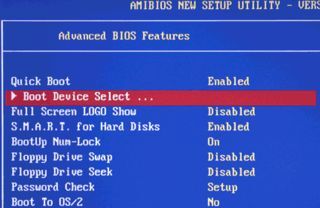 You should see a new screen pop up, called your BIOS. This is where you set a lot of low-level settings for your computer. Look through the options (being careful not to change anything) for a setting called "Boot Device," "Boot Order," or something similar. Select that option.
From there, you can follow the instructions on-screen to install Windows, troubleshoot issues, or do whatever else it is you need to do. Image byTechnoGeek95. |
In : Others
Tags: boot on usb
